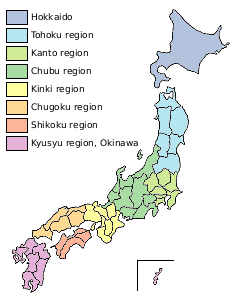
Original map
|
|
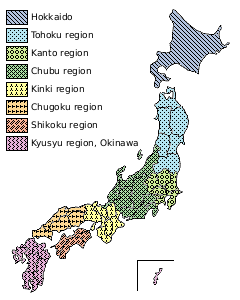
Hatching result
|
The following configuration and operations are available:
- You can select rough patterns to be drawn.
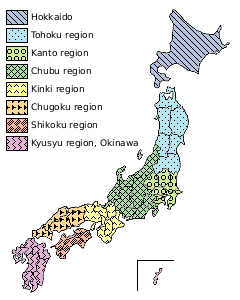
(Show example.)
- You can display the legend window of the hatch patterns.
When the cursor hovers over a hatch pattern for one second on the main window, the corresponding pattern on the legend window is highlighted.
- By left click on the main window, you can select one color on which the hatch pattern is drawn.
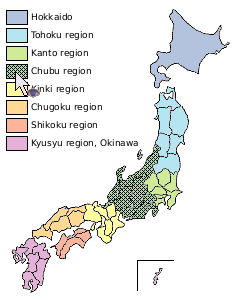
At that time, if you display the legend window, the check box on the left side of the corresponding pattern is automatically checked.
And vice versa, when you check the check box on the left side of the pattern, the corresponding pattern is drawn on the main window.
- By left click while holding down the Shift key on the main window, you can append/remove a color to/from the colors on which the hatch patterns are drawn.
- If you select one color by double click, all colors except for the selected one are darkened, or are brightened if the selected color is bright.
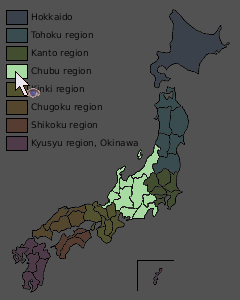
And vice versa, when you double click on a color item on the legend window, all colors except for the corresponding color are darkened on the main window.
- You can select "Draw all" or "Clear all" from the Hatching menu of the main window. And you can do the same operations by clicking the buttons on the legend window. When you right click anywhere on the main window, the Hatching menu is also shown.