
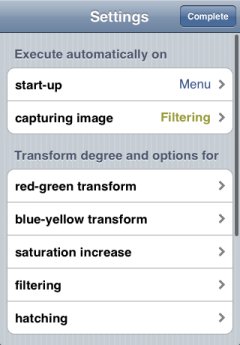
First part of setting view
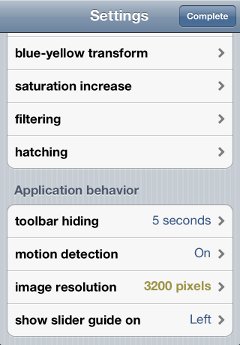
Last part of setting view
- Automatic executionYou can select an action that is executed automatically on application startup and on capturing an image.
- Transform degree and optionsYou can adjust various types of transform degree and can specify some transform options.
- Application behaviorYou can configure some application behavior mostly related to the accessory functions.
After tapping each configuration item, a corresponding sub view is displayed and then you can change its setting. (Every sub view has "Reset to defaults" button.)
In each item row of "Automatic execution" and "Application behavior", its current setting is shown at right side. When a current setting is the same as its initial setting, it is shown in blue. Otherwise, it's shown in yellow.
Moreover, each controls in sub view, such as slider, switch, and picker, is shown in default color when its value is the same as its initial value. Otherwise, it's shown in yellowish color.
