
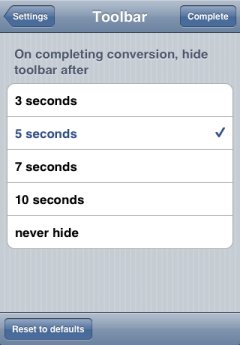
Toolbar hiding setting view
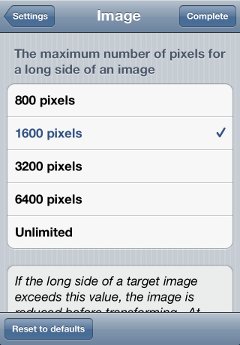
Resolution setting view
- Time until tool bar is hiddenIn the result views such as color transform view, filtering view, hatching view, and simulation view, the upper navigation bar and the lower tool bar are hidden after a certain period of time. (The initial setting is 5 seconds.) You can select the time with the sub view.
- Motion detectionIn the initial settings, when the navigation bar and the tool bar are being hidden and the arrow icon is being shown, the following motions are detected and the corresponding actions are performed: shaking a device vertically shows the hidden navigation bar and tool bar, and shaking horizontally goes back to the original image view. You can prevent those motions from being detected.
- [CAUTION]
- When you select "never hide" in the above-mentioned "Time until tool bar is hidden", this setting is not effective. (Those motions are never detected.)
- Image resolutionYou can select from among "800, 1600, 3200, 6400, and Unlimited" as the maximum number of processing pixels. If the long side of a target image exceeds this value, the image is scaled before color transformation, etc. A larger value makes the processing time longer. On the other hand, a smaller value makes the maximum enlargement factor smaller.
- [CAUTION]
- This value is applied to an image to be obtained next time.
- Display position of slider valueYou can choose either the left or right side for the value guide display position.
